Software Update
The software for the Landmark module is stored on a microSD card located in the slot pictured below.
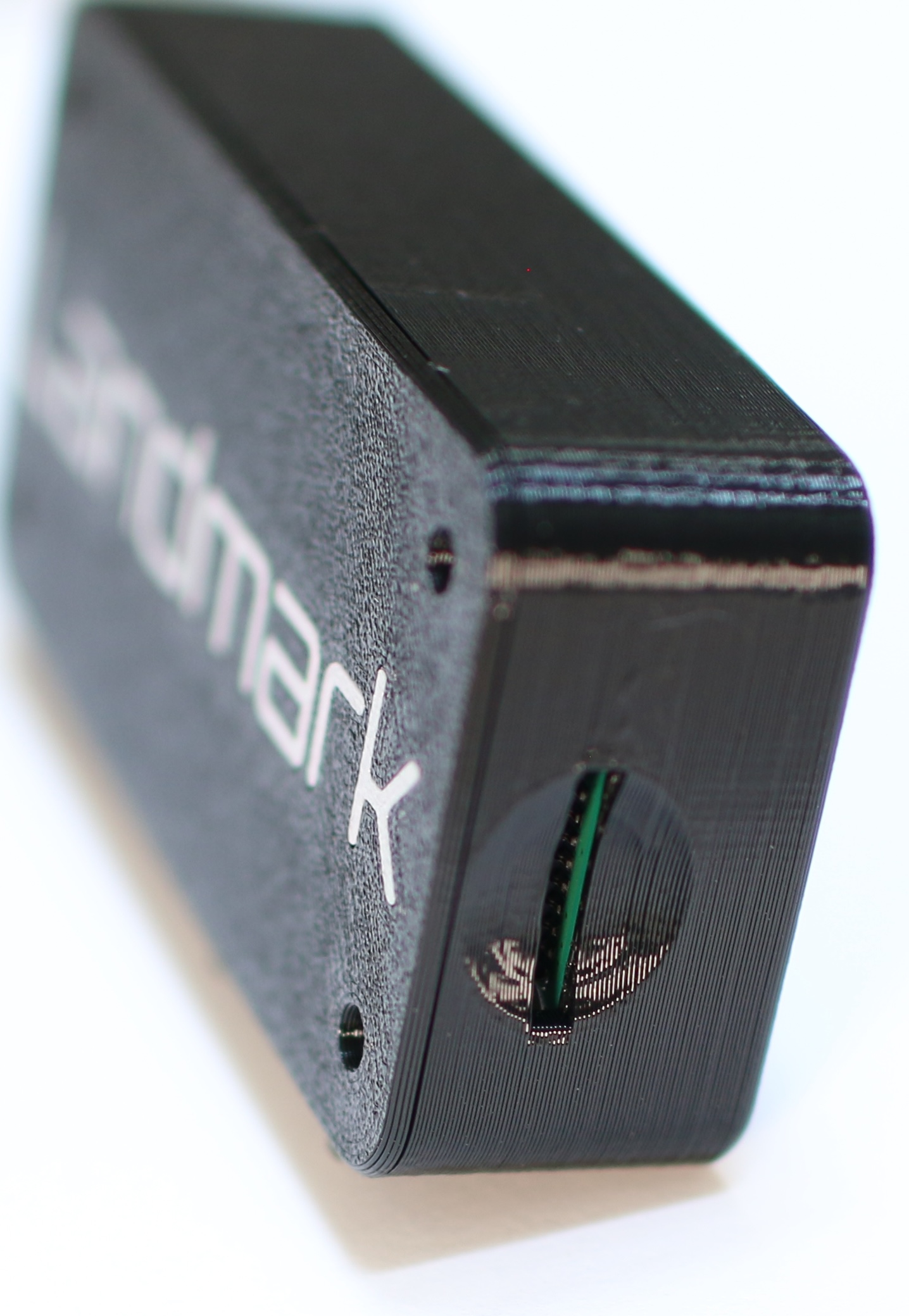
New software releases may be installed following these steps:
- Remove the microSD card from the Landmark module and insert it into a computer. A volume named bootfs should automatically mount.
- IMPORTANT: Copy the license file located at bootfs/landmark_license.json off the microSD card.
- Download the latest Landmark PLS software image: GitHub Releases
- Download, install, and run Raspberry Pi Imager.
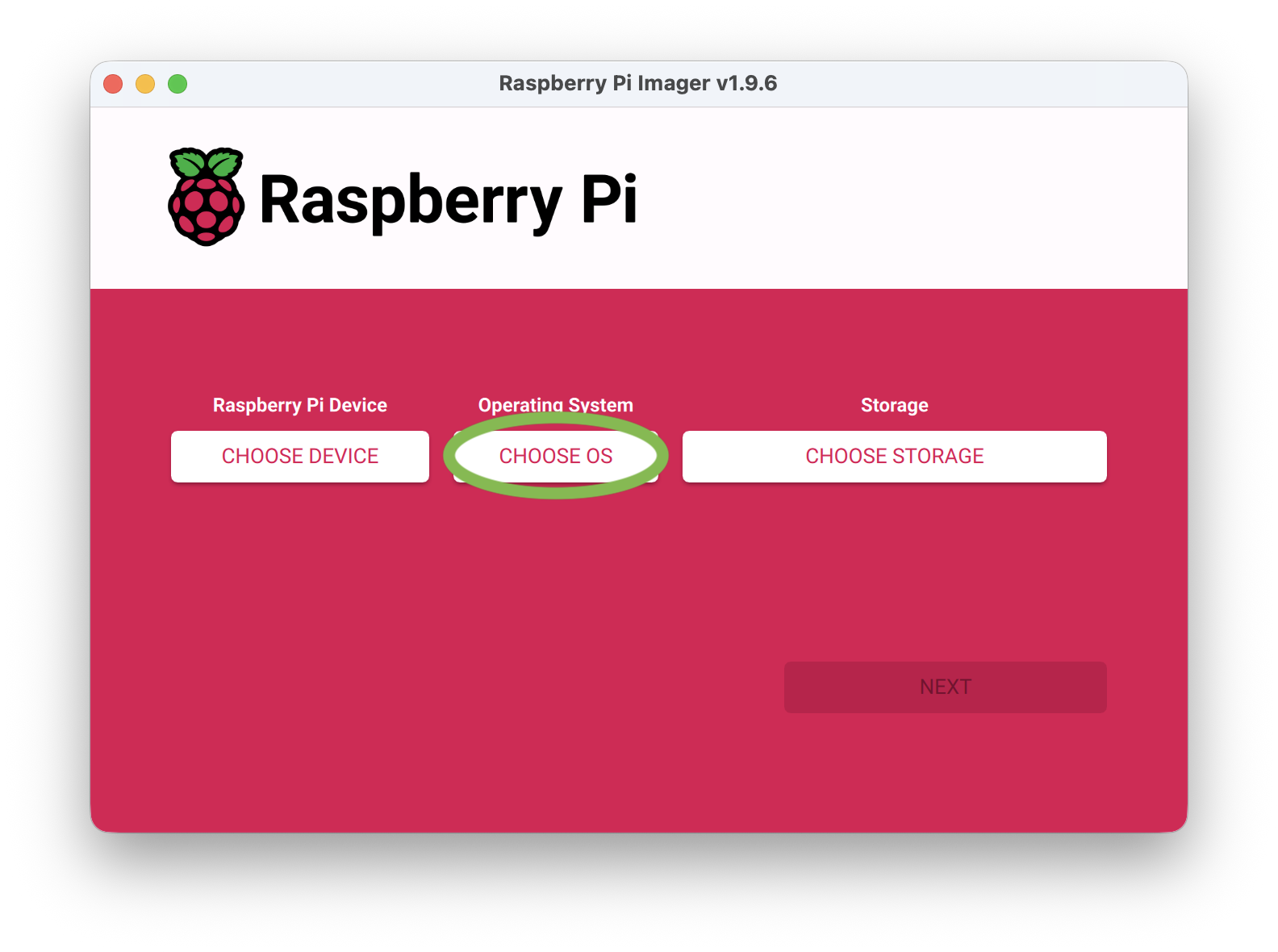
- Click CHOOSE OS then Use custom. Select the Landmark software image.
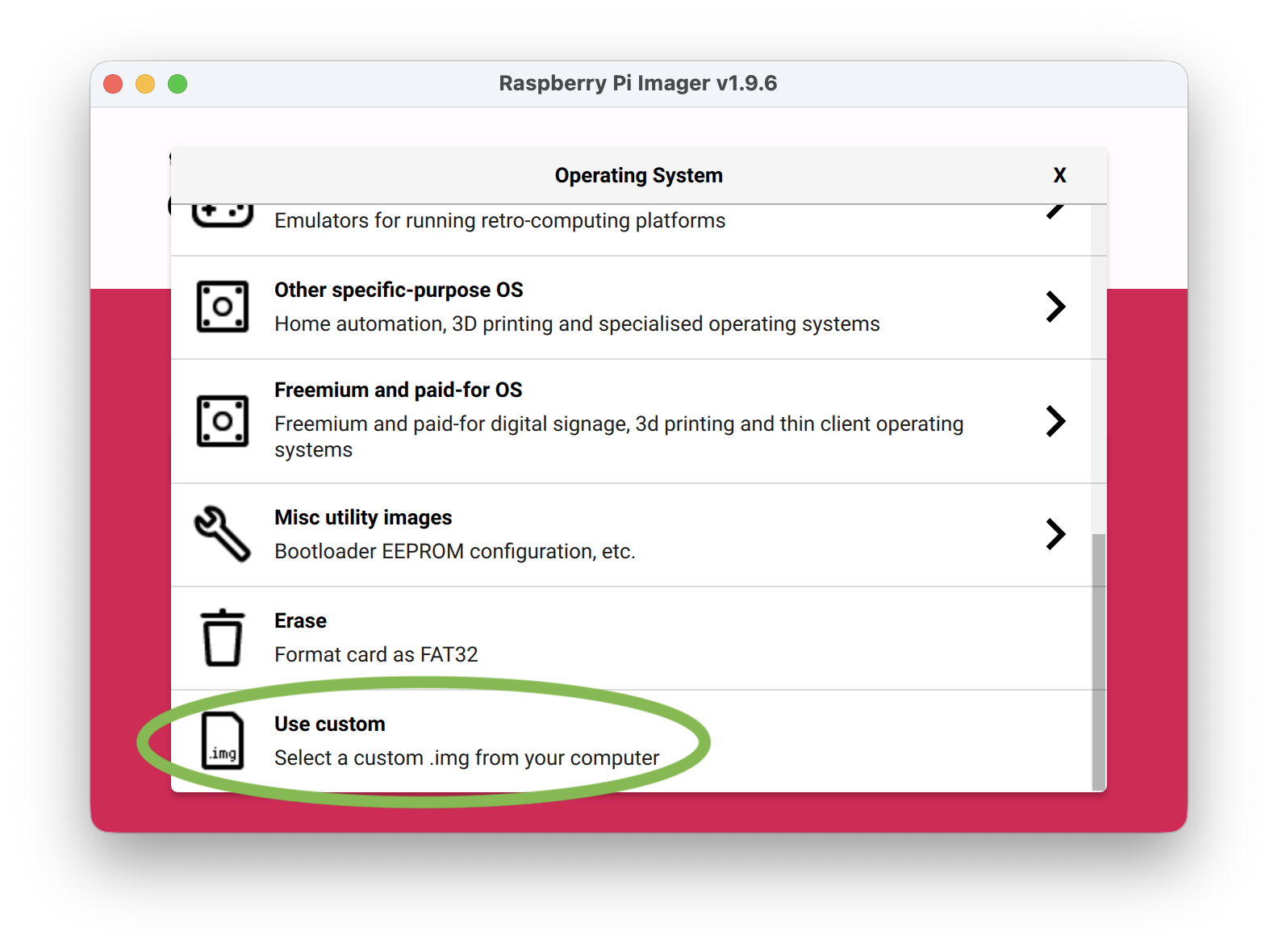
- Click CHOOSE STORAGE and select the microSD card.
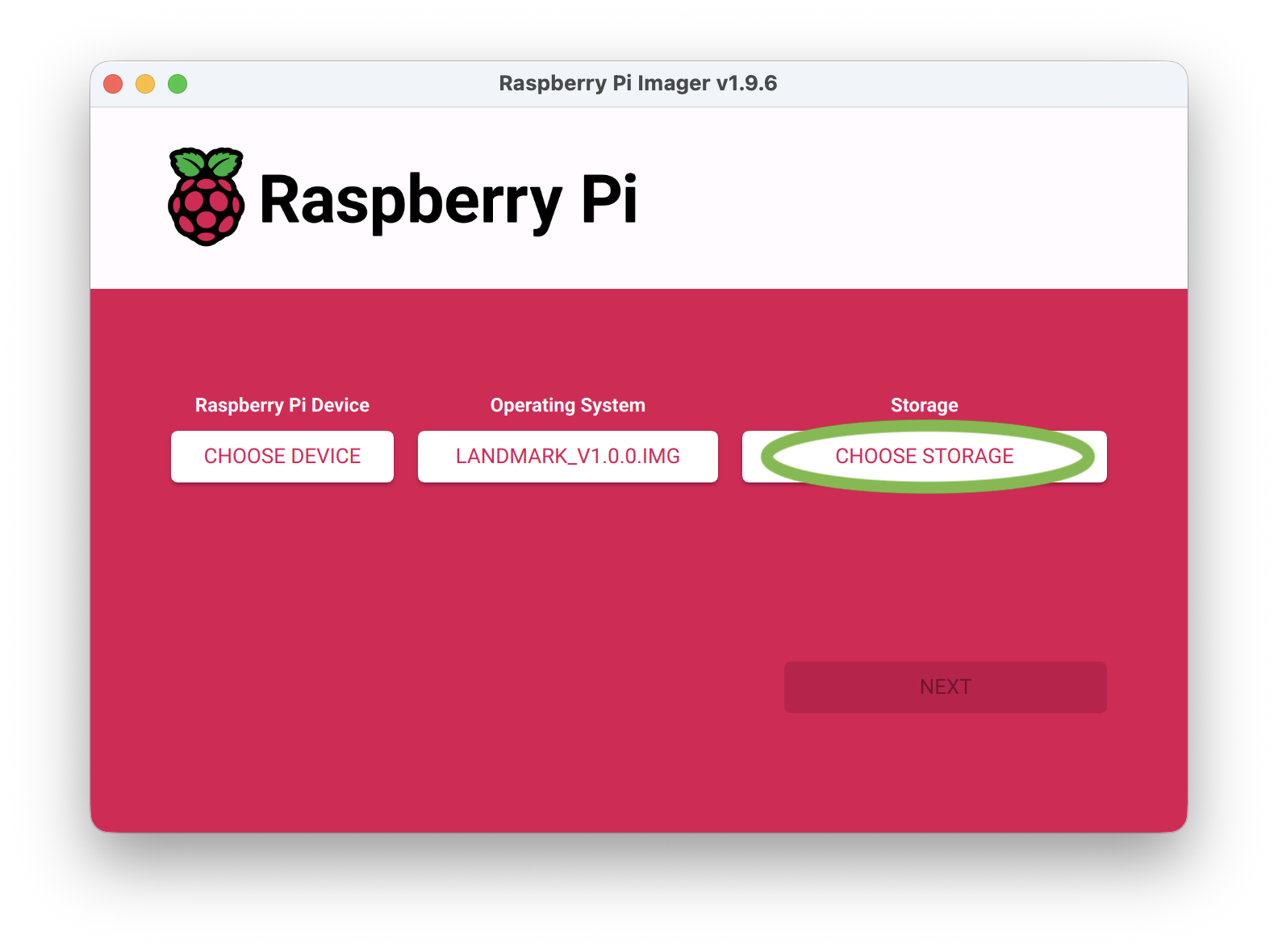
- Click NEXT then NO. (Don't apply OS customization settings.)
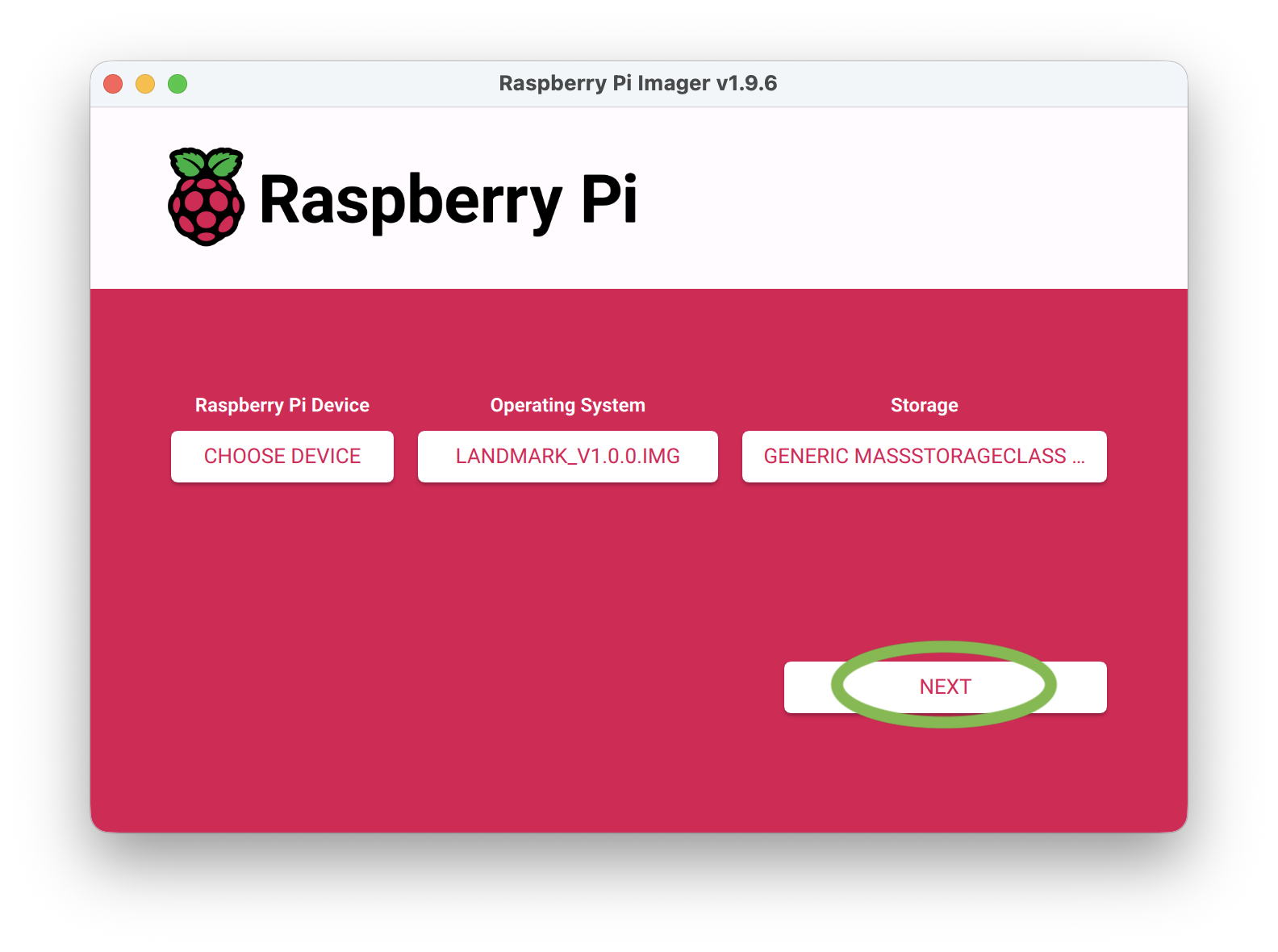
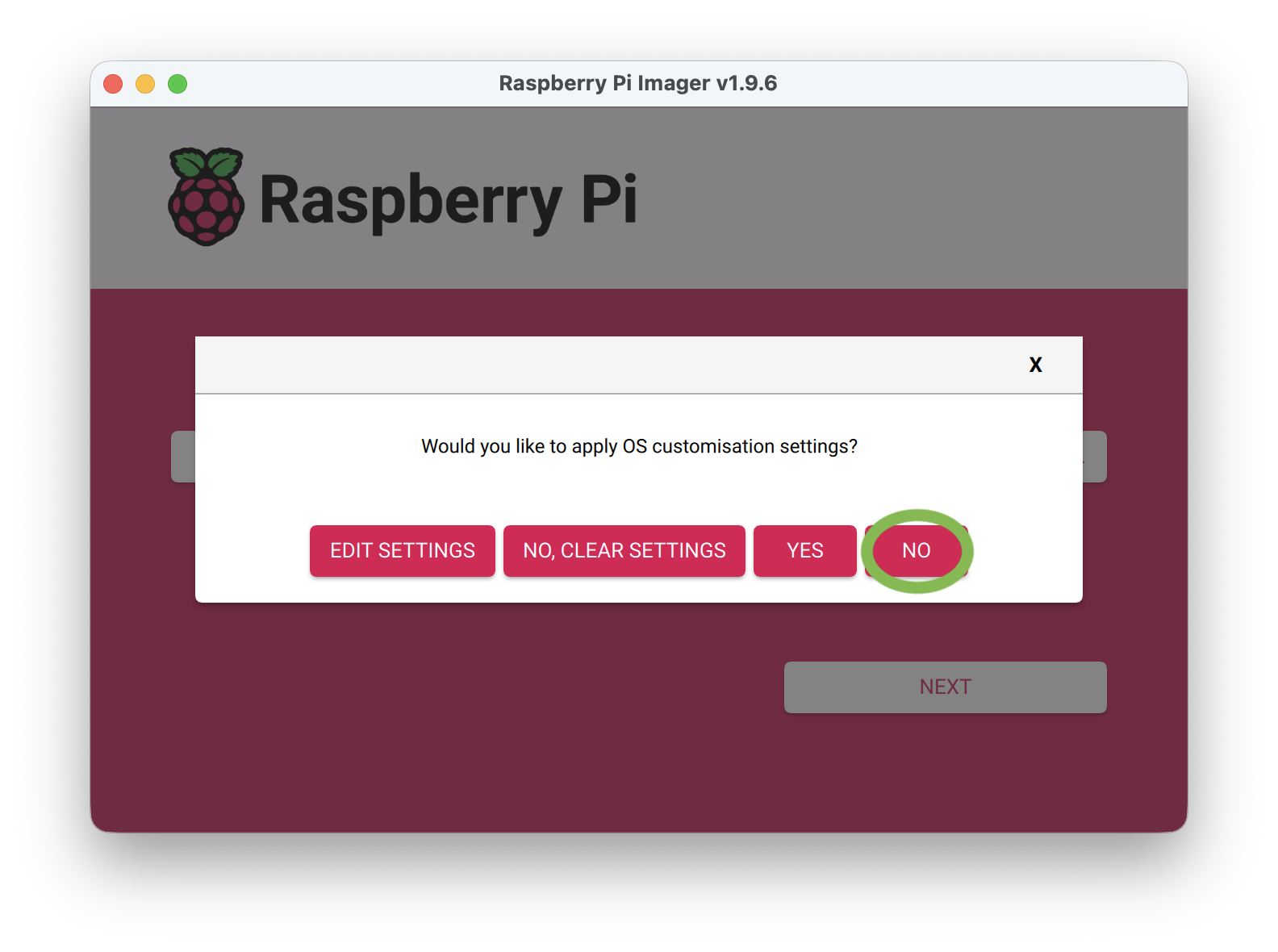
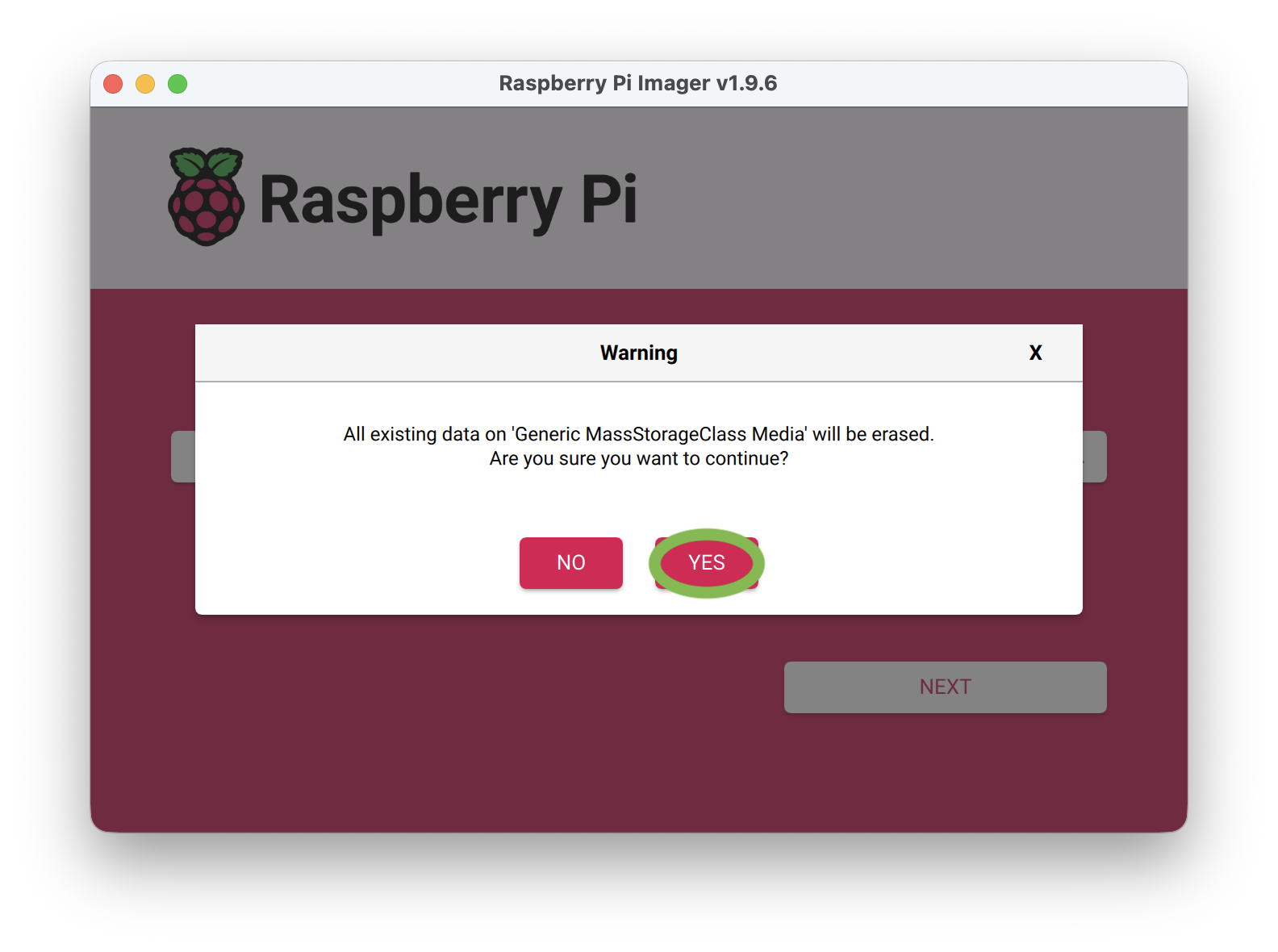
- Click YES to continue.
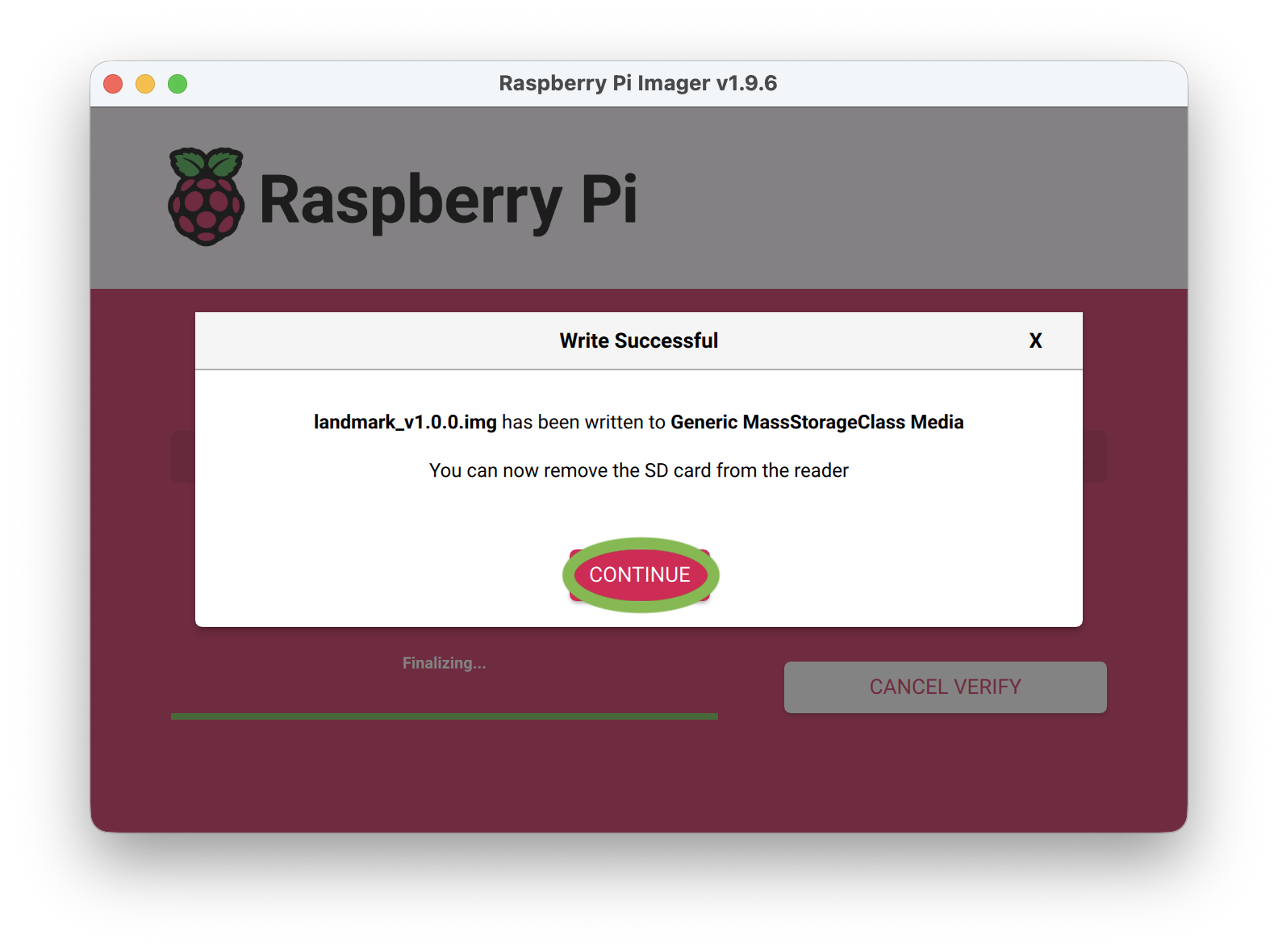
- Once the image has been written, click CONTINUE.
- Remove and re-insert the microSD card into your computer. (The microSD card is automatically ejected so it needs to be re-mounted.)
- Copy landmark_license.json back to bootfs.
- Eject the microSD card and insert it back into the Landmark module.
Software update complete!